Nouveau look, mais toujours le même produit d’exception ! HelloSign s’appelle maintenant Dropbox Sign.

Why request signatures in Dropbox?
As a Dropbox user, you already appreciate the convenience of managing all your files in one place. Now, imagine extending that convenience to all of your document signing without juggling between tools and context switching. With eSignatures in Dropbox, you can seamlessly handle all your important documents without the need for additional tools or free trials. By centralizing document signing within your trusted Dropbox account, we make it effortless for you to sign contracts, request signatures, and more, all at no extra cost.
Gone are the days of wasting time switching between different platforms or struggling with complex workflows. When you send eSignatures within Dropbox, you can sign permission slips, tax documents, sales proposals, and other crucial files without ever leaving where you work. This means you can save valuable time and focus on what truly matters—your real work.
Plus, instead of manually reminding people to sign, Dropbox Sign uses automated reminders and advanced signer options to boost completion, which can help you get contracts signed up to 80% faster than paper-based contracts.
Dropbox Sign also simplifies the signing process for your clients. They can sign documents from any location, on any device, and feel confident that their data is secure. Your signers don’t need a Dropbox account to sign either—just provide their email address and they'll be able to sign with a few clicks.
Here are some common ways you can use Dropbox Sign:
- Sales: Sales agreements and proposals for clients.
- HR onboarding: Employment contracts and W-4 forms.
- Project management: Project sign-offs and change requests.
- Real estate: Lease agreements and property purchase contracts.
- Healthcare: Consent forms and patient registration forms
- Finance: Loan applications and investment agreements.
How to send a signature request in Dropbox
Start by logging into your Dropbox account. If you don’t have an account yet, you can create one for free.
Once you’re signed in, you’ll be directed to the homepage, and on the left side menu, you should see an option called Signatures.
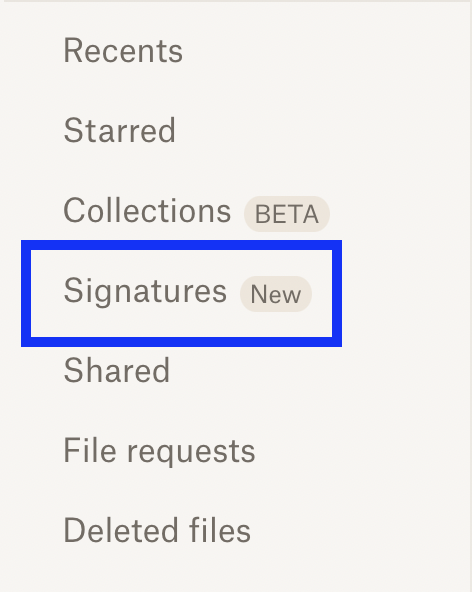
Click on Signatures and on the next page, click the downward arrow on the blue Sign button.
Choose the Send for signature option.

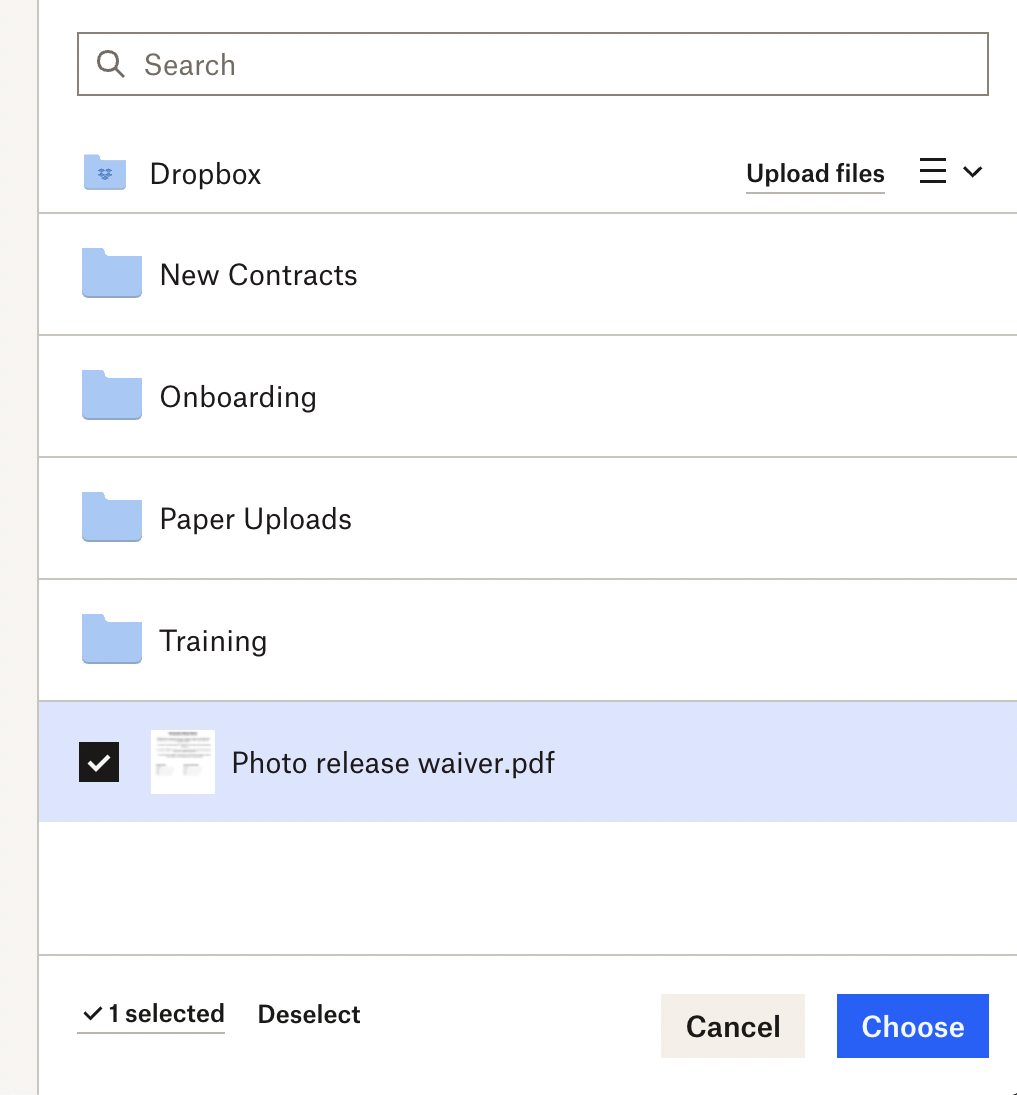
From here, a new window will pop up, prompting you to choose the document that you want to be signed. You can search for a file, choose the file from a Dropbox folder, or upload a file from your computer.
After you find or upload your file, click on the file name to select it and then click Choose to continue.
Next, enter the Name and Email address of the person who will be signing your document. If you have more than one signer, just click Add signer. You can also set the Signer order by checking the box under Signer settings.
Click Next when you’re done.

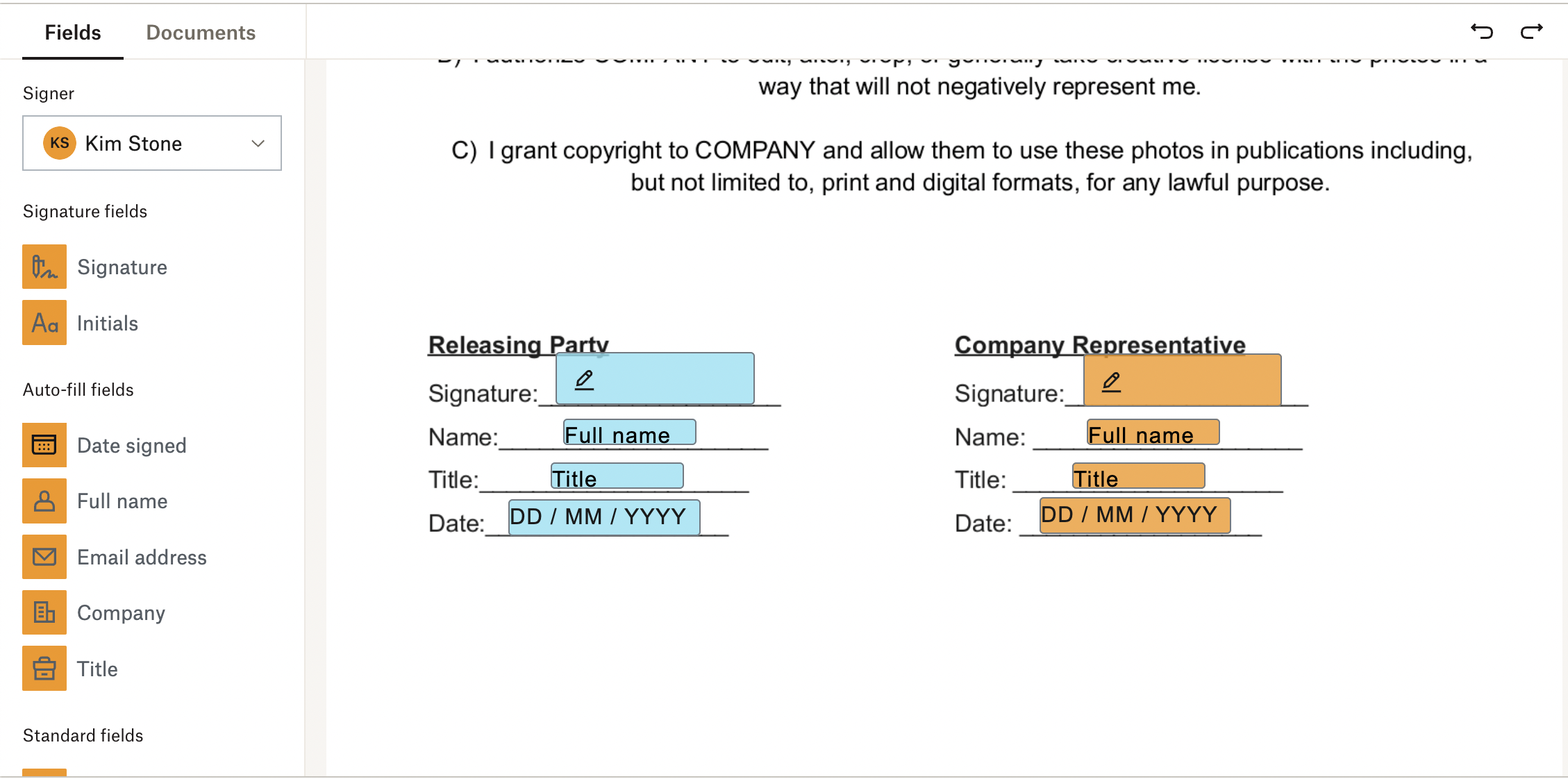
On the following page, you’ll be able to configure the signer fields that each person needs to complete.
You should see a menu of these signer fields, which include Signature, Date signed, Full name, and more, on the left side. Simply drag and drop the necessary fields to the appropriate places on your document, like in the image below.
If you have more than one signer, select each name from the drop-down menu under Signer on the left side—the fields for each signer will be colored differently, making them easy to differentiate.
Click Next when you’re finished.
From here, choose a folder to save your document in and click Next.

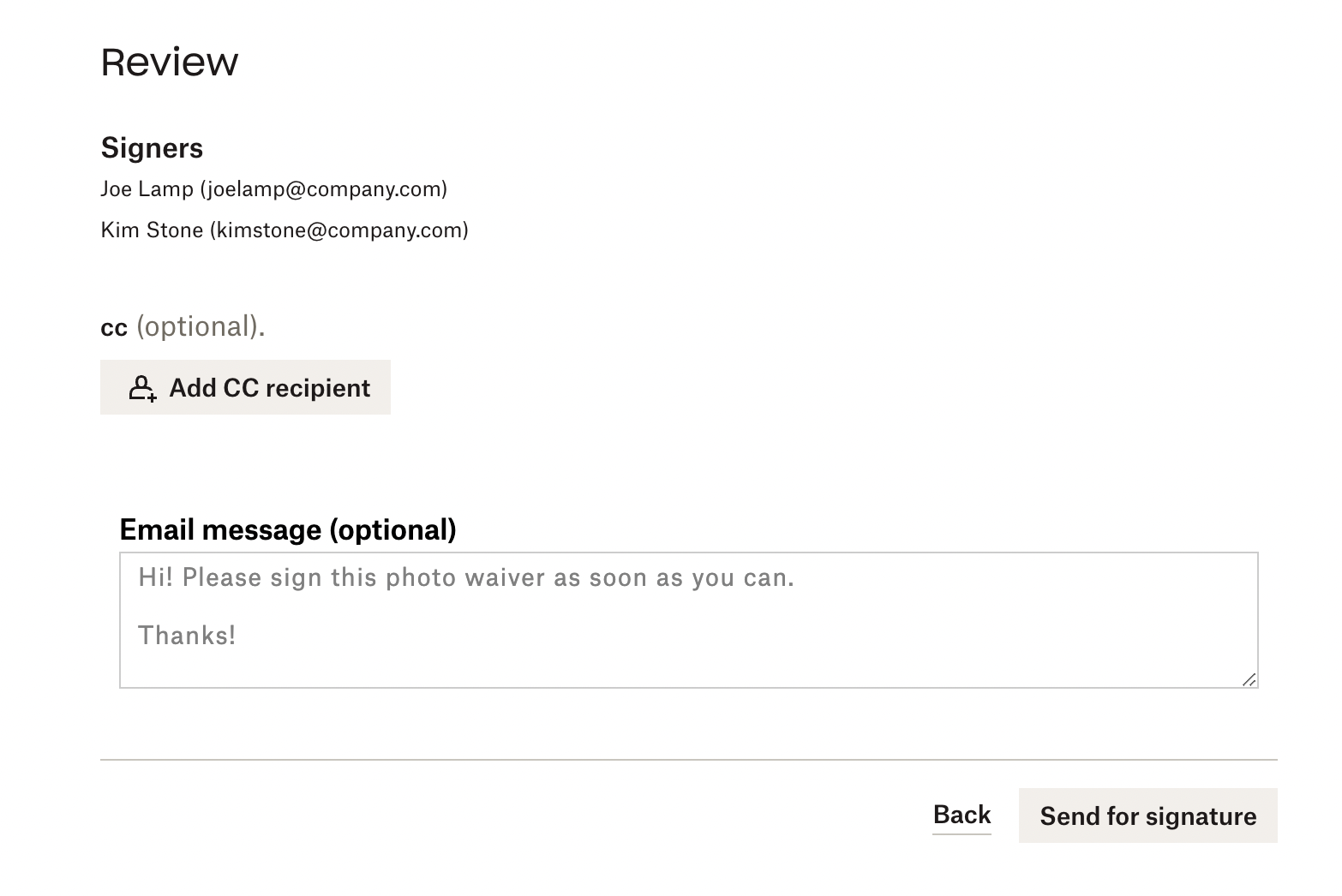
The last step is to send off your document for signature. First, review to make sure everything looks accurate with your signers’ names and email addresses.
You can also add a CC recipient and/or a message for your signers if needed.
Once you’re done, click Send for signature.
Sign smarter, not harder with Dropbox Sign
Requesting signatures in Dropbox is already a straightforward process—but you can also make use of additional features to make requesting and receiving signatures even more efficient.
For one, there’s no need to re-format your documents with signer fields every time you need to send out a request. Instead, you have the option to templatize your most frequently used contracts, which makes prepping documents even quicker.
You can also keep track of the status of each request so that you know whether it’s been signed or not. If you need to give your signers a nudge, you can easily prompt them with automatic reminders and save yourself the time and effort that would be spent on chasing down signatures.
Ready to try Dropbox Sign for yourself? Your first 3 signature requests are free and you can upgrade at any time for more.
Restez informé
Thank you!
Thank you for subscribing!