跳到主要内容
未找到任何项目。
dropboxsign 徽标
为什么选择 Dropbox Sign?
展开或折叠手风琴

您可以做什么

在线签署文档
创建电子签名
选择或创建模板
填写和签署 PDF
完成线上合同
文档管理
探索功能
向右箭头图标

用例

销售与业务拓展
人力资源
初创公司
金融科技
房地产
按需服务
产品
展开或折叠手风琴
Dropbox 图标
Sign
实现轻松发送和签字
Dropbox 图标
Sign API
将电子签名集成到您的工作流程中
dropbox fax 图标
Fax
无需传真机便能发送传真
dropbox 集成图标
集成
无缝集成助力您轻松工作
资源
展开或折叠手风琴
博客
工作流程专业知识和产品新闻
客户案例
讲述取得实际成果的真实故事
帮助中心
关于我们产品的深入指南
资源库
报告、视频和信息表
开发人员
定价
展开或折叠手风琴
Dropbox Sign 定价
找到适合您的套餐
Dropbox Sign API 定价
讲述取得实际成果的真实故事
与销售人员联系
注册
联系销售人员
登录
展开或折叠手风琴
Dropbox Sign
Dropbox Forms
Dropbox Fax
免费试用版
博客
/
开发人员

使用 Dropbox eID 进行电子 ID 和签字人验证

by 
Aniket Bhattacharyea
July 22, 2024
6
分钟阅读时间
工具提示图标

外观全新但功能同样出色的产品!HelloSign 现为 Dropbox Sign。

关闭图标

As the world steadily embraces digitization, the evolution of document signing from traditional pen and paper to digital signatures is inevitable. This shift brings notable challenges, not only in retaining the familiar signing process but, more importantly, in safeguarding the security and legal integrity of signed documents. Moreover, digital signatures need to be able to verify the identity of the signer to prevent fraud, which is where electronic ID (eID) comes in, serving as a digital form of identity verification.

Dropbox Sign can help with all these challenges seamlessly. With Dropbox Sign, you can create legally binding signatures by drawing, typing, or uploading signatures—all within seconds. With Dropbox Sign’s eID verification feature, you can verify the identity of the signers and ensure that they are who they claim to be.

In this article, you'll learn how Dropbox Sign streamlines the eID verification process and delivers a safe and secure document signing process.

‍

What is Dropbox eID

Many businesses face situations where verifying identity is crucial to avoid potential fraud and legal ramifications. For instance, companies need to be able to verify the identity of a new hire before they sign a job offer. Typically, when digitally signing a job offer, there's no way to verify that the new hire is actually the one signing the document. However, with eID, the signer must perform an identity check and verify their identity to be able to sign the document.

Different countries use different eID frameworks, but the concept of eID is always the same. With eID, every user has an electronic proof of identity that they must present to validate their authenticity. Thankfully, with the Dropbox Sign eID feature, it's easy to implement.

Dropbox Sign partners with Qualified Trust Service Providers (QTSP) in different countries to provide a streamlined eID verification process that looks like this:

  • The eID verification is enabled when you create the Signature Request.
  • The signer can proceed with signing the document.
  • The signer is asked to verify their identity.
  • The signer selects their country.
  • An eID verification method is chosen based on the country. eID verification is quick and easy, using AI-powered liveliness checks and government ID verification.
  • Once the eID is verified, the document is successfully signed.

‍

eIDAS compliance

Because eID is a critical aspect of verifying the identities of users, it's essential that proper standards are set in place to ensure the highest level of security and reliability. That's where electronic IDentification, Authentication, and trust Services (eIDAS) comes in.

eIDAS is a European Union project that was launched in 2014. It works to regulate eID frameworks across Europe.

eIDAS creates and maintains standards for eSignatures, eSeals, eTimestamps, and eID, which enables a safe and secure electronic transaction experience with the same legal validity as paper-based transactions.

eIDAS offers two levels of trust for digital signatures: advanced electronic signature (AES) and qualified electronic signature (QES).

AES requires the signer to pass identity verification by producing a valid government-issued document and/or passing a biometric check. AES provides a higher level of trust than typical signatures by verifying the government-issued proof of identity.

QES goes one step further by using a face-to-face, or equivalent, ID verification process by a QTSP. The resulting digital certificate is created with a qualified electronic signature device.

Dropbox Sign supports both AES and QES by partnering with reputed QTSPs throughout the world.

‍

Benefits of Dropbox eID

Dropbox eID provides numerous benefits for your document signing workflow, including the following:

  • ‍Mitigates risk with identity verification: eID verification with Dropbox Sign increases security and combats fraud and scams. You get a legally binding signature while also verifying the identity of the signer.
  • ‍Streamlines identity verification through simplified integration: To integrate eID verification with a document signing workflow, developers need to build integrations with two separate APIs: one for document signing and one for eID verification. However, this process can be tedious and error-prone. Dropbox Sign simplifies this process by putting both under one umbrella. Enabling eID verification is as easy as passing a single parameter to the API call, and Dropbox Sign handles the rest.
  • ‍Offers an easy-to-use system: Dropbox Sign is easy to use and offers comprehensive documentation and a responsive support team.

‍

How to use eID verification with Dropbox Sign

In this section, you'll learn how to use eID verification with Dropbox Sign. This article integrates Dropbox Sign with a Next.js project using its Node.js SDK, but you can also follow a similar process for other frameworks.

To follow along, you need the following:

  • A Dropbox Sign account. Please note that eID verification is only available with the Premium plan. To participate, you need to subscribe to that plan. eID verification cannot be used in test mode, so following along will cost you money. If you prefer not to follow along, screenshots are provided throughout to offer insights into the functionality.
  • The latest version of Node.js installed. This article uses Node.js v20.

‍

Enabling eID verification

To begin, sign into your Dropbox Sign account. Click on the user avatar in the top-right corner of your dashboard and select Admin Console.

In the Admin Console, navigate to Settings > Signature requests. In the Signature request options sections, you'll find a toggle to turn on eID:

Enabling eID

‍

When you turn eID on, you'll be asked to confirm your decision. Click on Yes, I'm sure to enable eID:
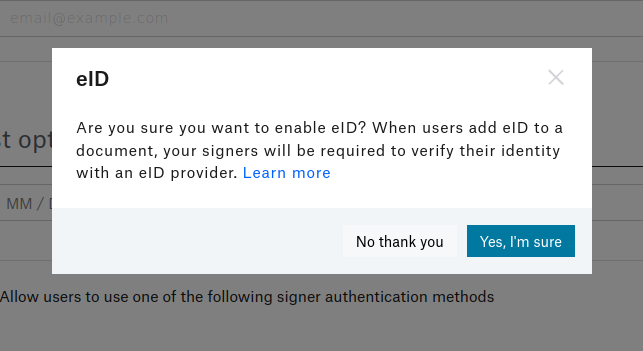
Confirmation for enabling eID

‍

Make sure you save your settings before proceeding.

On the Dropbox Sign dashboard, click on API in the left sidebar. Then click on Generate key to create a new API key. Give the key a name (here, it's named "eID demo") and click on Generate key:

Creating a new API key

‍

Copy the newly created API key and store it in a safe place.

‍

Creating the application

For simplicity, a starter app has been created using Next.js, which you can find on GitHub. You need to clone the starter branch of this repository, which acts as the starting point for this tutorial:


git clone https://github.com/heraldofsolace/dropbox-sign-eid-demo.git -b starter
cd dropbox-sign-eid-demo

‍

Install the dependencies with npm install.

In components/CreateSignatureRequestForm.jsx, you'll find a form that helps you upload a document and create a Signature Request. Right now, the backend code is incomplete, so the form does nothing. You can confirm this by running npm run dev and visiting http://localhost:3000 in your browser:
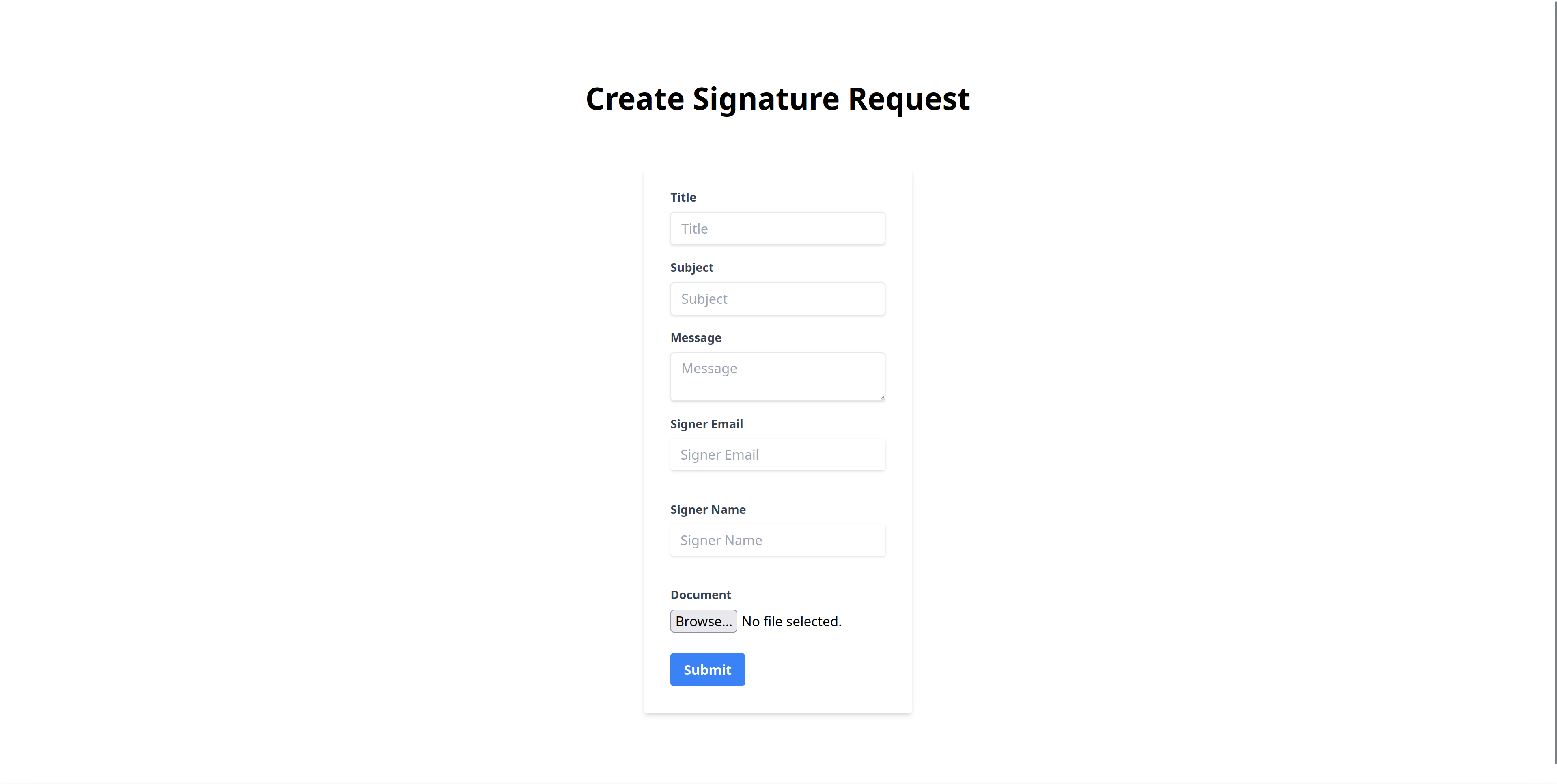
The Create Signature Request form

‍

The form is defined in the components/CreateSignatureRequestForm.jsx file. The file looks like this:


import { useState } from 'react'

export function CreateSignatureRequestForm() {
	const [file, setFile] = useState();
	const [title, setTitle] = useState("");
	const [subject, setSubject] = useState("");
	const [message, setMessage] = useState("");
	const [signer, setSigner] = useState("");
	const [signerName, setSignerName] = useState("");
	const [result, setResult] = useState({});
const onSubmit = async (e) => {
    	e.preventDefault()
    	if (!file) return
      try {
        	const data = new FormData()
        	data.set('file', file)
        	data.set('title', title)
        	data.set('subject', subject)
        	data.set('message', message)
        	data.set('signer', signer)
        	data.set('name', signerName)
const res = await fetch('/api/signature-request', {
            	method: 'POST',
            	body: data
        	})
        	// handle the error
        	if (!res.ok) throw new Error(await res.text())
        	setResult(await res.json())
    	} catch (e) {
        	// Handle errors here
        	console.error(e)
    	}
	}
return (
	<div className="w-full max-w-xs">
    	<form className="bg-white shadow-md rounded px-8 pt-6 pb-8 mb-4" onSubmit={onSubmit}>
        	<div className="mb-4">
            	<label className="block text-gray-700 text-sm font-bold mb-2" htmlFor="title">
                	Title
            	</label>
            	<input
                	className="shadow appearance-none border rounded w-full py-2 px-3 text-gray-700 leading-tight focus:outline-none focus:shadow-outline"
                	id="title"
                	name="title"
                	type="text"
                	placeholder="Title"
                	required
                	onChange={(e) => setTitle(e.target.value)} />
        	</div>
<div className="mb-4">
            	<label className="block text-gray-700 text-sm font-bold mb-2" htmlFor="title">
                	Subject
</label>
            	<input
                	className="shadow appearance-none border rounded w-full py-2 px-3 text-gray-700 leading-tight focus:outline-none focus:shadow-outline"
                	id="subject"
                	name="subject"
                	type="text"
                	placeholder="Subject"
                	required
                	onChange={(e) => setSubject(e.target.value)} />
        	</div>
        	<div className="mb-4">
            	<label className="block text-gray-700 text-sm font-bold mb-2" htmlFor="title">
                	Message
            	</label>
            	<textarea
                	className="shadow appearance-none border rounded w-full py-2 px-3 text-gray-700 leading-tight focus:outline-none focus:shadow-outline"
                	id="message"
                	name="message"
                	type="text"
                	placeholder="Message"
                	required
                	onChange={(e) => setMessage(e.target.value)} />
        	</div>
<div className="mb-6">
            	<label className="block text-gray-700 text-sm font-bold mb-2" htmlFor="signer">
                	Signer Email
            	</label>
            	<input
                	className="shadow appearance-none rounded w-full py-2 px-3 text-gray-700 mb-3 leading-tight focus:outline-none focus:shadow-outline"
                	id="signer"
                	name="signer"
                	type="email"
                	placeholder="Signer Email"
                	required
                	onChange={(e) => setSigner(e.target.value)} />
        	</div>
        	<div className="mb-6">
            	<label className="block text-gray-700 text-sm font-bold mb-2" htmlFor="signer">
Signer Name
            	</label>
            	<input
                	className="shadow appearance-none rounded w-full py-2 px-3 text-gray-700 mb-3 leading-tight focus:outline-none focus:shadow-outline"
                	id="name"
                	name="name"
                	type="text"
                	placeholder="Signer Name"
                	required
                	onChange={(e) => setSignerName(e.target.value)} />
        	</div>
        	<div className="mb-6">
            	<label className="block text-gray-700 text-sm font-bold mb-2" htmlFor="file">
                	Document
            	</label>
            	<input
                	type="file"
                	name="file"
                	accept='application/pdf'
                	required
                	onChange={(e) => setFile(e.target.files?.[0])}
            	/>
        	</div>
        	<div className="flex items-center justify-between">
<button
                	className="bg-blue-500 hover:bg-blue-700 text-white font-bold py-2 px-4 rounded focus:outline-none focus:shadow-outline"
                	type="submit">
                	Submit
            	</button>
            	{result.success? <p className="text-green-500 text-xs italic">Success</p> : null}
        	</div>
    	</form>
	</div>
  )
}

‍

Pay special attention to the onSubmit method. It extracts the values from the form and makes a POST request to /api/signature-request. Next, you'll write the handler for this API route.

‍

Writing the API handler

Start by creating a file named .env in the root of the project and add the following code:


DS_API_KEY=<YOUR_API_KEY>

‍

Replace <YOUR_API_KEY> with the API key you generated in the previous section.

Inside the pages directory, create a new api/signature-request directory. Create an index.js file inside this newly created directory.

This file is responsible for taking the contents of the form and making requests to the Dropbox Sign API.

Now, you need to define the handler for the `/api/signature-request` route. You also need to turn off bodyParser because you'll be using formidable to parse the form contents:


import formidable from 'formidable';
import fs from 'fs';
export const config = {
	api: {
    	bodyParser: false,
	},
}
export default async function handler(request, response) {
}

‍

Inside the handler function, the first step is to make sure it responds only to POST requests:


export default async function handler(request, response) {
	if(request.method !== 'POST') {
    	return response.status(400).json({ success: false, message: 'Invalid request method' });
	}
}

‍

Then you need to parse the submitted form and extract the fields:


export default async function handler(request, response) {
	if(request.method !== 'POST') {
    	return response.status(400).json({ success: false, message: 'Invalid request method' });
	}
	const form = formidable({ uploadDir: "./uploads", keepExtensions: true });
    
	let fields, files;
try {
    	// Parse the fields
    	[fields, files] = await form.parse(request);
	} catch(error) {
    	console.error(error);
    	return response.status(400).json({ success: false, message: error })
	}
	const { title, subject, message, signer, name } = fields;
// Return if fields are missing
if(!title || !subject || !message || !signer || !name || !files) {
    	return response.status(400).json({ success: false, message: 'Missing required fields' })
	}
}

‍

Install the Dropbox Sign Node SDK by running npm install @dropbox/sign.

Now, you need to configure an instance of the SignatureRequestApi class from the Dropbox Sign SDK. This class is responsible for making the request to the Dropbox Sign SDK.

Begin by importing the class:


import { SignatureRequestApi } from "@dropbox/sign";

‍

Then instantiate an object of the SignatureRequestApi class:


const signatureRequestApi = new SignatureRequestApi();

‍

And configure the options for the signature request:


const requestData = {
	title: title[0],
	subject: subject[0],
	message: message[0],
	signers: [ { emailAddress: signer[0], name: name[0] } ],
	files: [ fs.createReadStream(files.file[0].filepath) ],
	signingOptions: {
    	draw: true,
    	type: true,
    	upload: true,
    	phone: true,
    	defaultType: "draw",
	},
	isEid: true,
}

‍

Here, you're setting the title, subject, and message of the Signature Request by using the form content. The signers option sets the name and email ID of the signer. An email notification is sent to the signer at this email address.‍

Please note: If you're enabling eID, you're not allowed to have more than one signer.

The files option attaches the document that needs to be signed, and the signingOptions option specifies how the signer can sign the document. In this case, you're allowing drawing, typing, and uploading the signature, as well as allowing a mobile signature.

The final parameter, isEid, is the one that tells Dropbox Sign that the signer must verify their identity using eID before they can sign the document.

Note: If you're using the Dropbox Sign API directly, this parameter is named is_eid.

Finally, make the request:


try {
	const result = await signatureRequestApi.signatureRequestSend(requestData);
	return response.json({ success: true, message: result.body })
} catch (error) {
	console.error(error);
	return response.status(400).json({ success: false, message: error })
}

‍

The entire file looks like this:


import { SignatureRequestApi } from "@dropbox/sign";
import formidable from 'formidable';
import fs from 'fs';

export const config = {
	api: {
    	bodyParser: false,
	},
}
export default async function handler(request, response) {
	if(request.method !== 'POST') {
    	return response.status(400).json({ success: false, message: 'Invalid request method' });
	}
	const form = formidable({ uploadDir: "./uploads", keepExtensions: true });
    
	let fields, files;
try {
    	// Parse the fields
    	[fields, files] = await form.parse(request);
	} catch(error) {
    	console.error(error);
    	return response.status(400).json({ success: false, message: error })
	}
	const { title, subject, message, signer, name } = fields;
// Return if fields are missing
if(!title || !subject || !message || !signer || !name || !files) {
    	return response.status(400).json({ success: false, message: 'Missing required fields' })
	}
const signatureRequestApi = new SignatureRequestApi();
signatureRequestApi.username = process.env.DS_API_KEY;
	const requestData = {
    	title: title[0],
    	subject: subject[0],
    	message: message[0],
    	signers: [ { emailAddress: signer[0], name: name[0] } ],
    	files: [ fs.createReadStream(files.file[0].filepath) ],
    	signingOptions: {
        	draw: true,
        	type: true,
        	upload: true,
        	phone: true,
        	defaultType: "draw",
    	},
    	isEid: true,
	}
try {
    	const result = await signatureRequestApi.signatureRequestSend(requestData);
    	return response.json({ success: true, message: result.body })
	} catch (error) {
    	console.error(error);
    	return response.status(400).json({ success: false, message: error })
	}
}

‍

Testing the app

To test the app, start the Next.js server with the following command:


npm run dev

‍

Open http://localhost:3000 in your browser. You should see the Create Signature Request form.

Fill up the fields, attach a document, and click on Submit:

Filling up the form

‍

You'll receive an email asking you to sign the document:
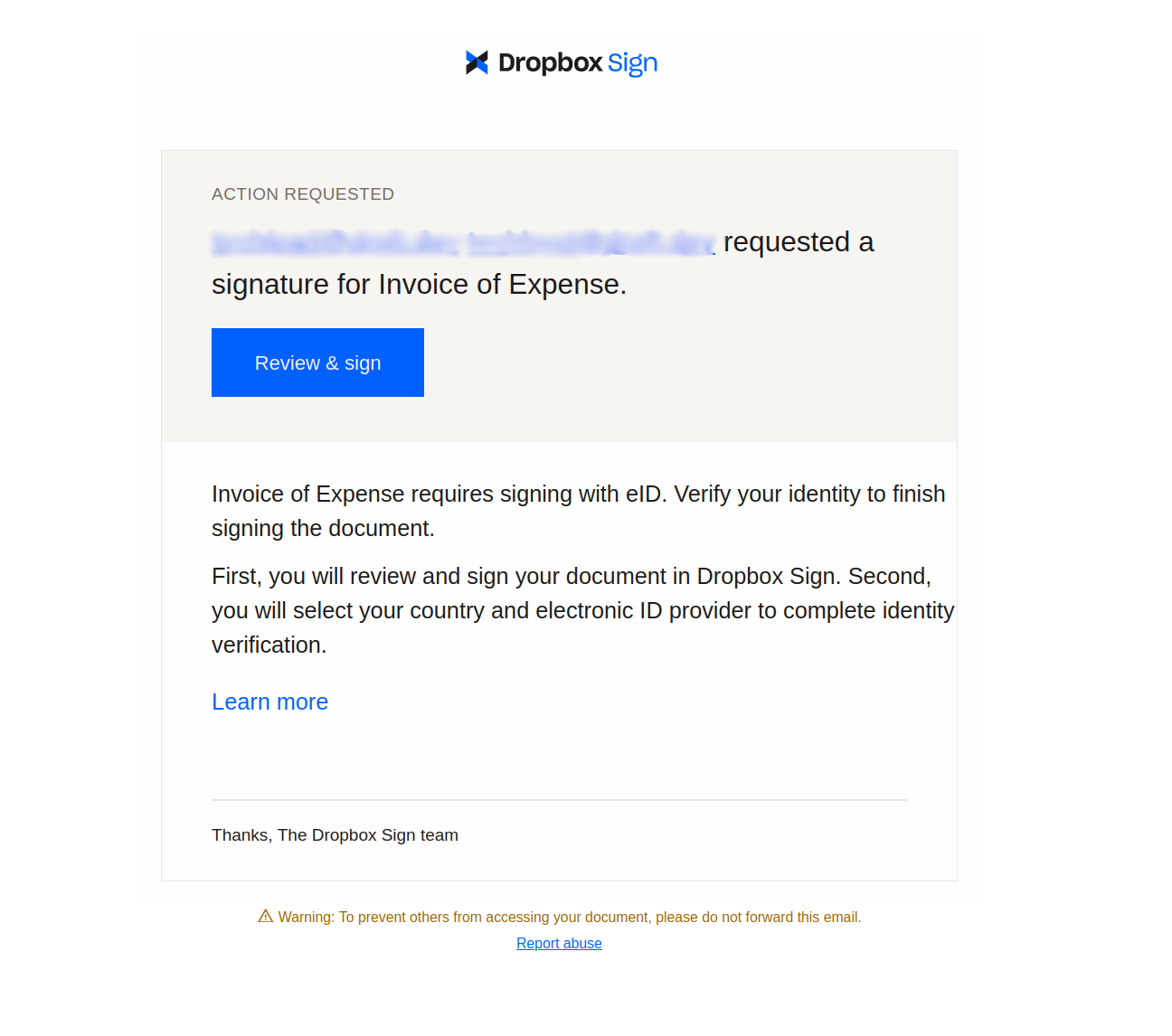
Email asking for signature

‍

When you click on Review & sign, you'll be taken to a preview of the document, with a new page appended to it. There, you have an option to add a signature:
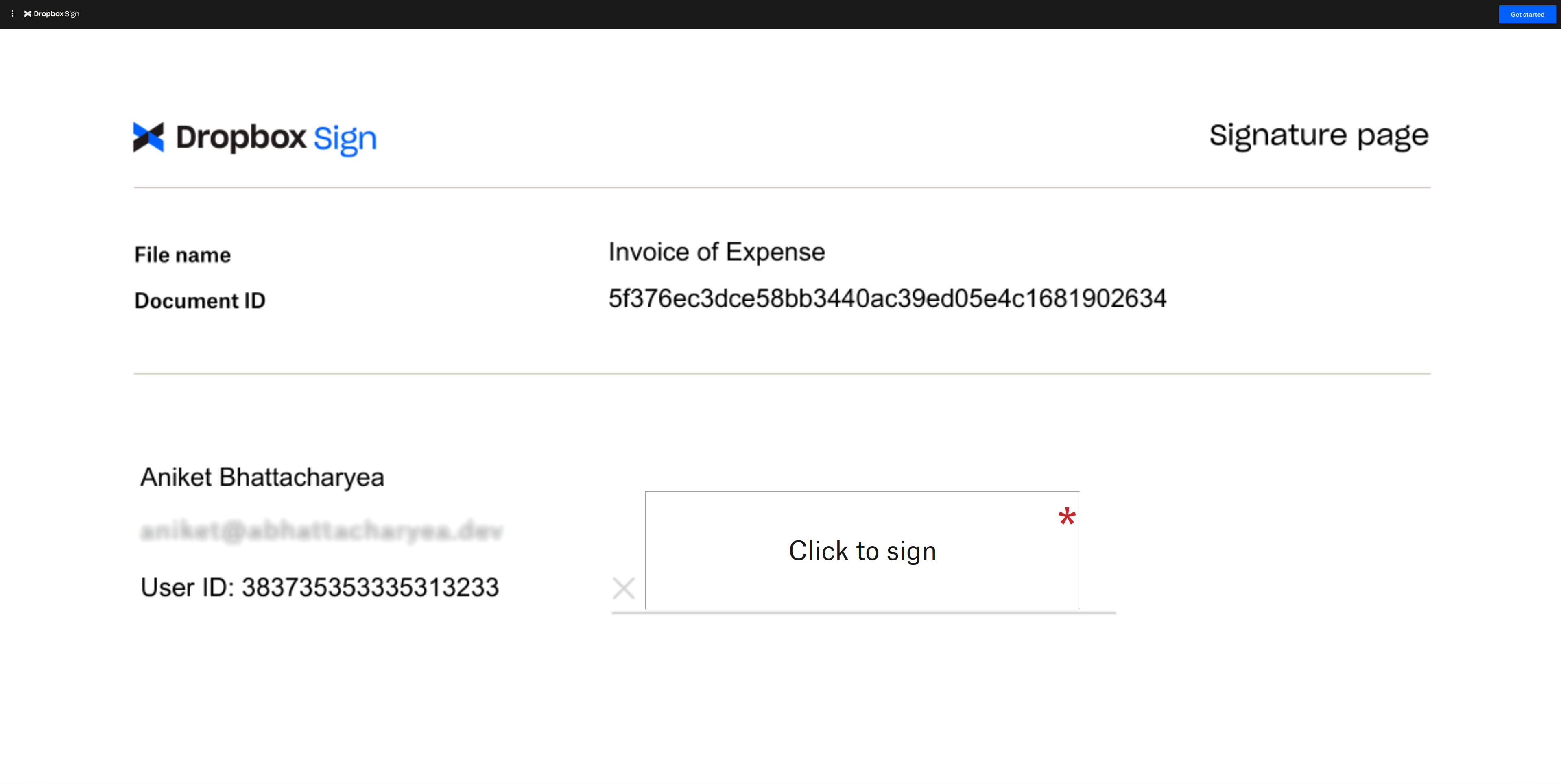
The signature page

‍

Select Click to sign, and you are given the option to draw, type, or upload a signature:
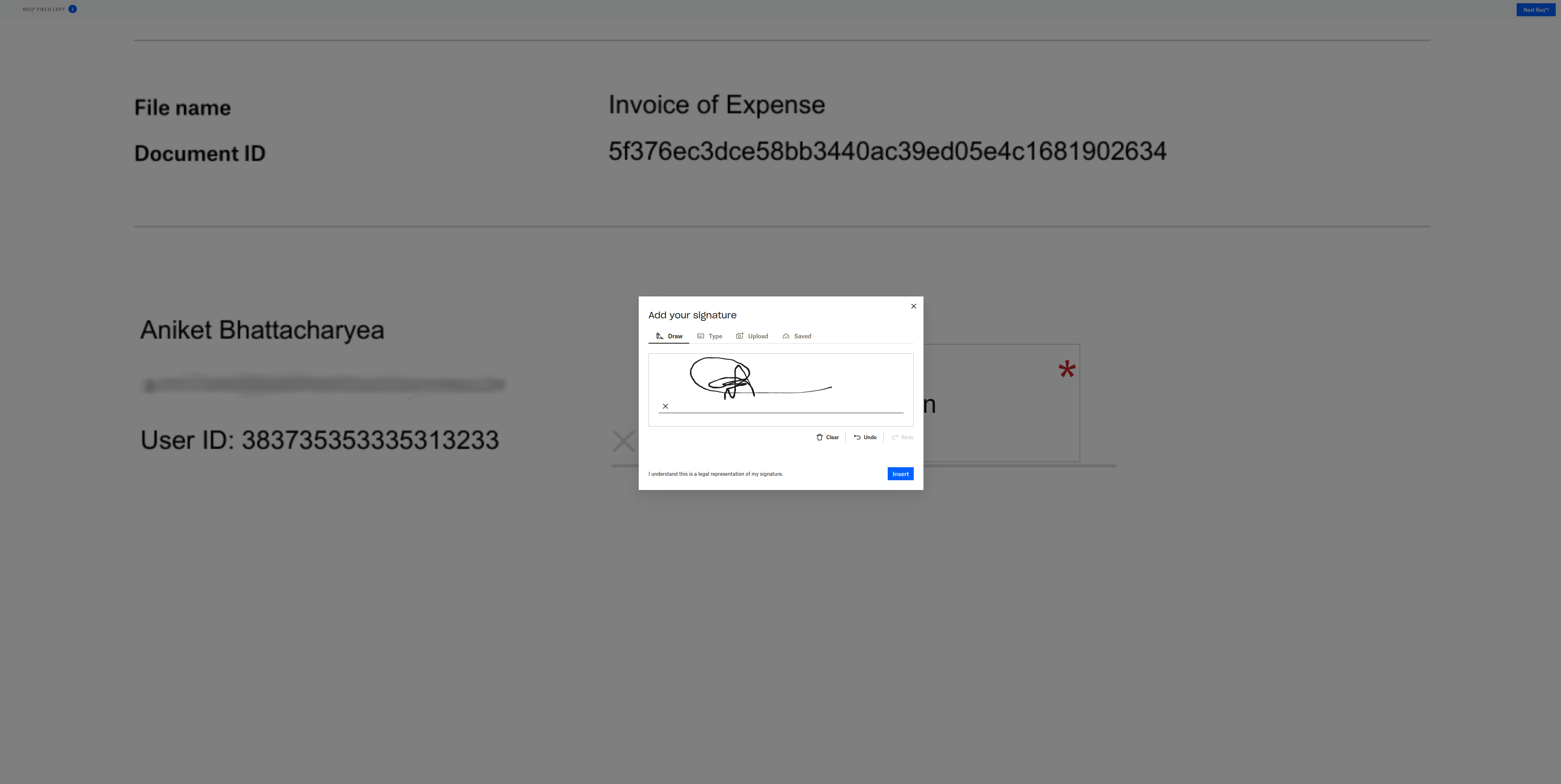
Sign the document

‍

When you click on Next, you'll receive a confirmation dialogue for starting eID:

Confirmation for starting eID verification

‍

When you click on Continue, the eID verification will begin. You need to choose your country and the method of verification. The process varies based on your location. Follow the prompts. Once the verification is done, the signature is complete.

You can find the final code in the main branch of this GitHub repo.

‍

Conclusion

eID is a crucial tool for identity verification. It adds an extra layer of security for document signing workflows by ensuring the signers are who they say they are.

In this article, you explored the eID feature of Dropbox Sign and learned how to use eID verification with Dropbox Sign. Dropbox Sign offers an easy-to-integrate eID verification flow with the help of QTSPs that are AES and QES compliant.

‍

保持更新

完成!请检查您的收件箱。

Thank you!
Thank you for subscribing!

Lorem ipsum

Lorem ipsum dolor sit amet, consectetur adipiscing elit. Suspendisse varius enim in eros elementum tristique. Duis cursus, mi quis viverra ornare, eros dolor interdum nulla, ut commodo diam libero vitae erat. Aenean faucibus nibh et justo cursus id rutrum lorem imperdiet. Nunc ut sem vitae risus tristique posuere.

Lorem ipsum
向右箭头图标
关闭图标

Up next:

手写签名的特写插图,代表现代数字签名解决方案。
开发人员
15
分钟阅读时间

将 Dropbox Sign 与 Ruby on Rails 集成:分步教程

手写签名的特写插图,代表现代数字签名解决方案。
开发人员
15
分钟阅读时间

Dropbox Sign vs. SignNow for developers

报告

对于专业服务公司而言,2022 年会如何?

产品
Dropbox SignDropbox Sign APIDropbox Fax集成
为什么选择 Dropbox Sign
电子签名签署文档签署和填写 PDF在线合同创建电子签名签名编辑器签署 Word 文档
支持
帮助中心与销售人员联系联系支持人员管理 Cookie开始使用:Dropbox Sign开始使用:Dropbox Sign API
资源
博客客户案例资源中心合法性指南信任中心
合作伙伴
战略合作伙伴合作伙伴查找工具
公司
招贤纳士条款隐私
Facebook 图标YouTube 图标

接受的付款方式

Mastercard 徽标Visa 徽标American Express 徽标Discover 徽标
CPA 合规标记HIPAA 合规标记Sky High Enterprise Ready 标记ISO 9001 认证标志

在美国、欧盟、英国和世界许多其他地区,Dropbox Sign 电子签名均具有法律约束力。
如需了解更多信息,请查看我们的条款和条件以及隐私政策